For those of you who hate to see ads while browsing then this is the time to learn how to block ads in Google Chrome without extensions. Manage your browser settings for a smoother, ad-free browsing experience. No additional software is needed!
Now noticed one thing, it’s important to recognize that not all advertisements are created equal in terms of their content and objectives. While some ads may offer helpful guidance, others can be highly annoying, disruptive, or even threaten the safety of the user. Therefore, it’s important to consider the potential consequences before enabling this feature.
You can block ads in Chrome without using extensions by following these steps:
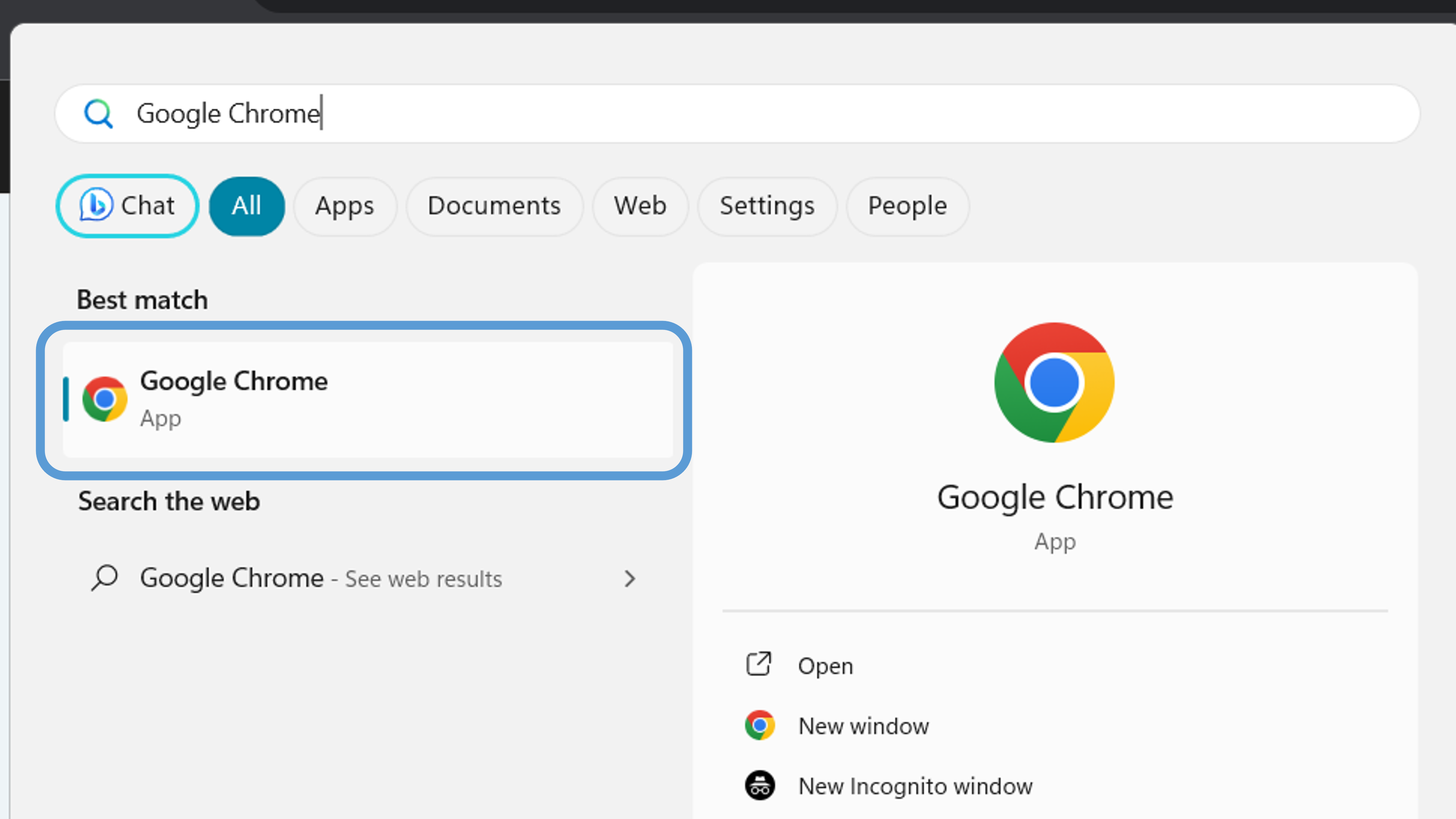
1. Open Google Chrome.
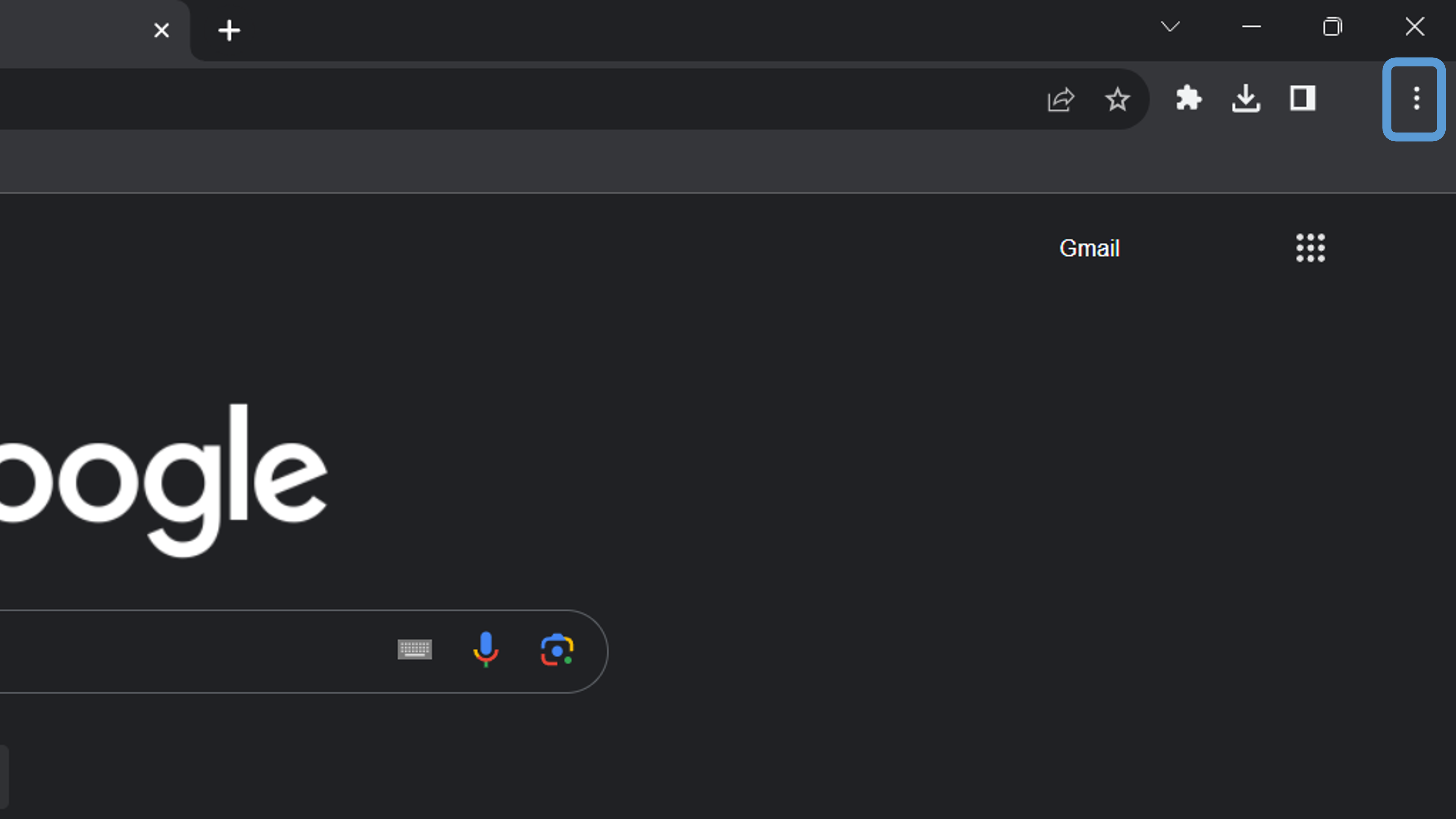
2. Click on the three-dot icon (⋮) at the browser window’s top-right corner to open the Chrome menu.
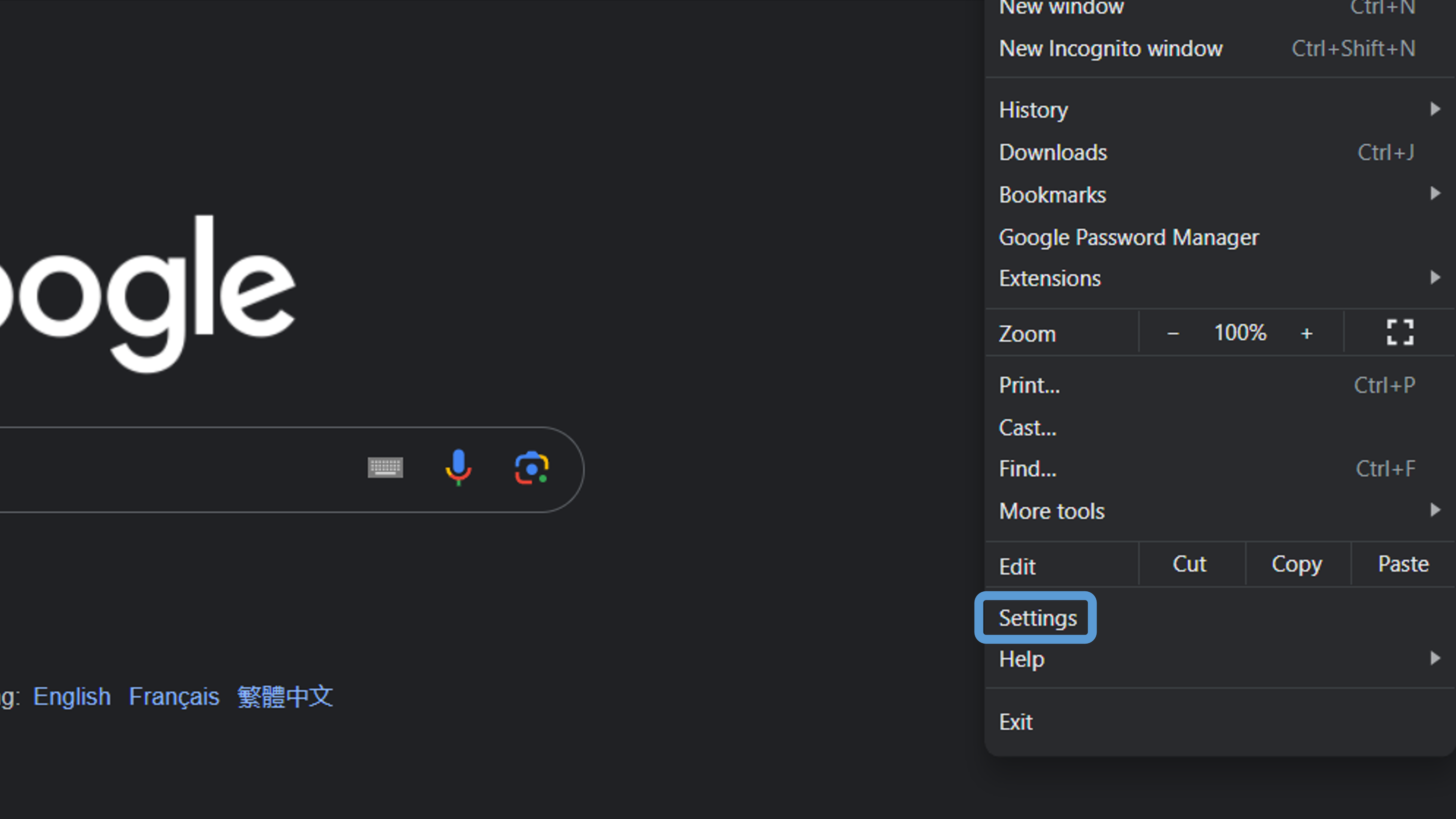
3. Click on “Settings” from the dropdown menu to access Chrome’s settings page.
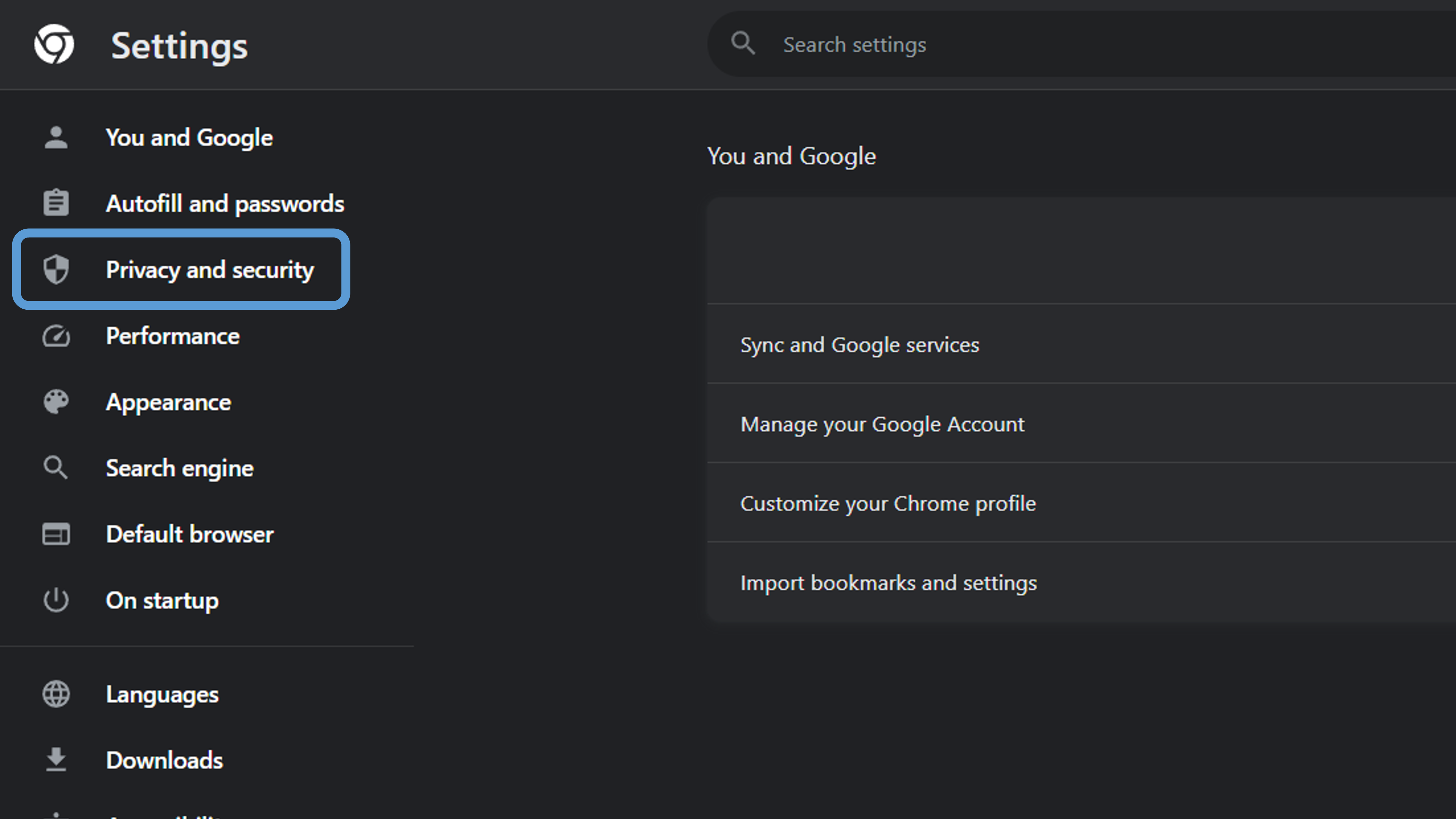
4. Scroll down the settings page and click on the “Privacy and Security” option.
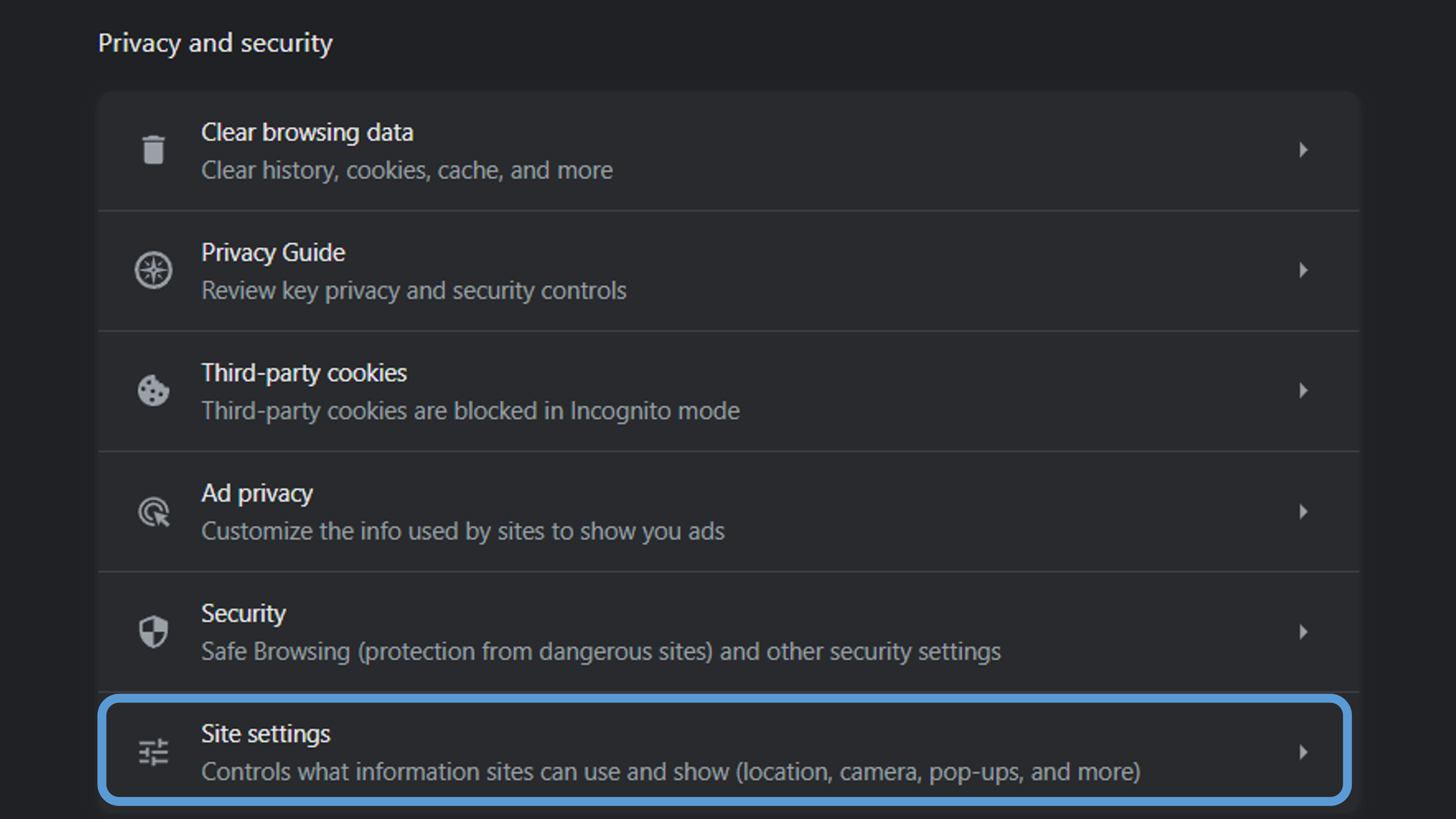
5. On the Privacy and Security page, click the “Site settings” option.
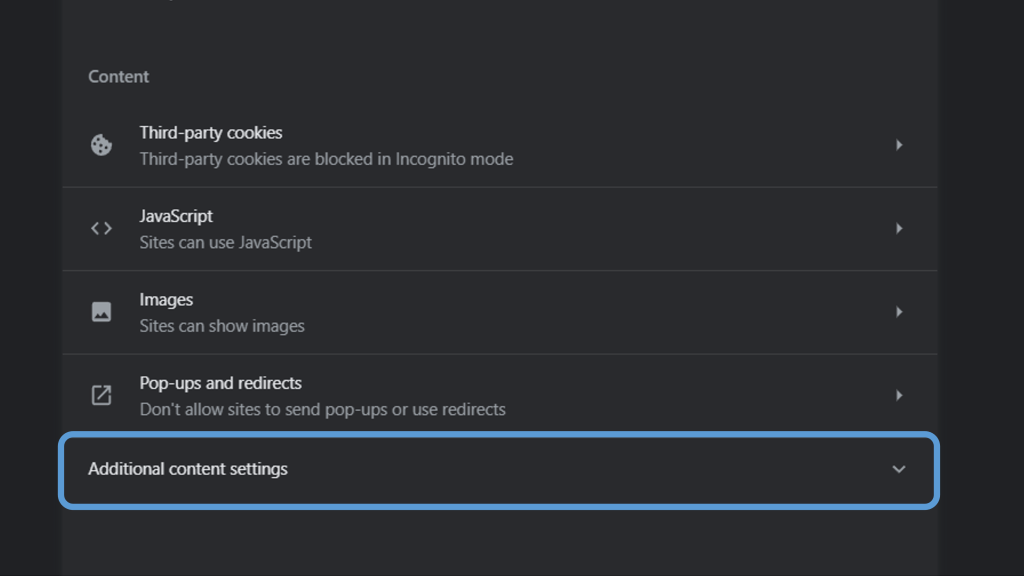
6. In the Content section, scroll down until you find the “Additional content settings” option and click on it to reveal more settings.
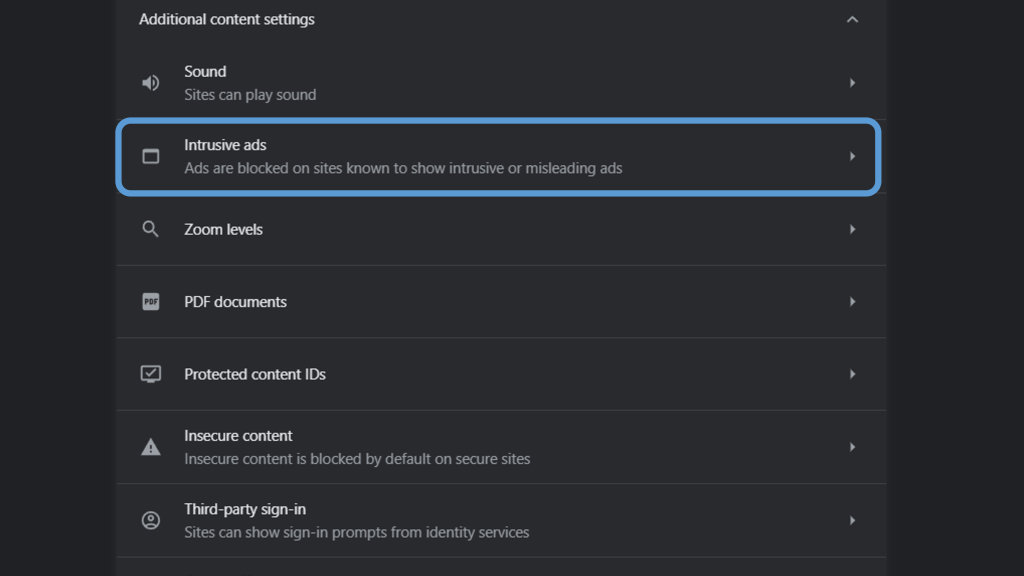
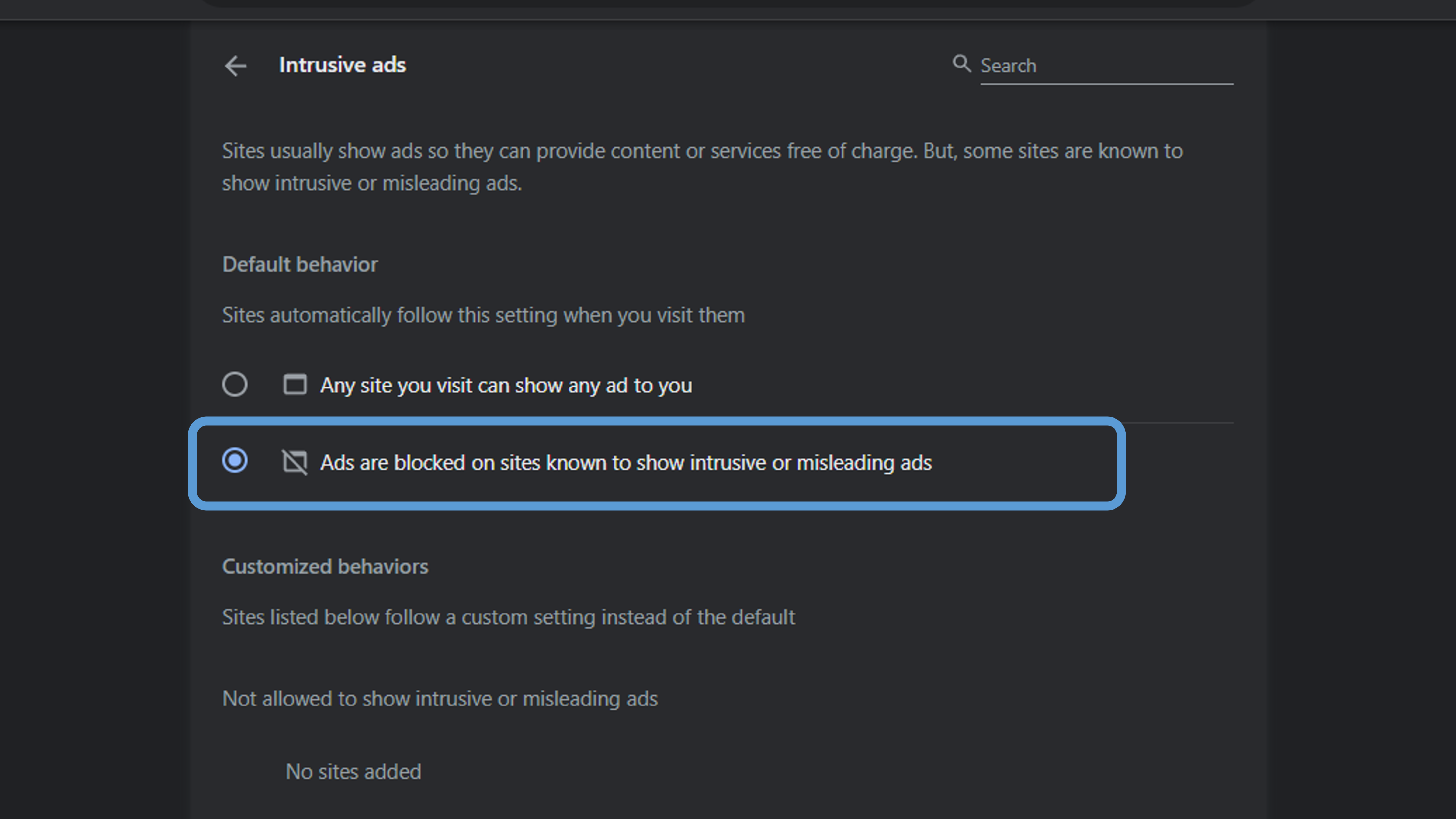
7. Click “Intrusive ads” and flip the toggle switch next to “Ads are blocked on sites known to show intrusive or misleading ads” to enable ad blocking.
Now you can enjoy a smoother, ad-free browsing experience without the need for additional software.
Please note that this method will not block all ads, but it will significantly reduce the number of intrusive ads you encounter while browsing.

 Digital Bucket